Understanding Presets in Divi 5
I have spent the last couple of weeks chasing my tail trying to understand the relationship between what Divi calls "element presets", "group presets", “global variables”, and good old-fashioned HTML and CSS. A visual builder should, in theory, simplify the process of building websites, but I found the on-boarding process somewhat frustrating and confusing.
Divi 5 is such a huge leap forward from the earlier version I purchased years ago that I almost feel bad about complaining. After all, the product, just out of beta today, represents quantum leaps in UI and functionality.
So, rather than grousing, I decided to pitch in. This post is to "pass-forward" what I have gleaned in the past couple of weeks in the hopes that you won't have to suffer quite so hard a learning curve.
In the olden days we would build a website by coding HTML and CSS. At some level, of course, Divi 5 uses those codes, but 99% of the time it shields you from coding. You drag and drop modules, fill in forms, and Divi writes the code behind the scenes. Nearly everything you need to design a page can be done without any coding at all. Almost.
However, to accommodate the inherent open-ended flexibility of web-design, to let you do whatever you might have been able to do had you decided to code rather than "paint" a page, Divi has incorporated a lot of tools/methods/and locations that all interact. In the beginning I felt like I was falling down the rabbit hole trying to comprehend where everything was!
Making the learning process even harder than it ought to be are the YouTube videos where fast-talking heads keep touting how easy and fast it all is to style your pages in Divi. The faster they talked, the less I understood. I feared I might never get the hang of how to use Divi.
This post is an effort to help you avoid some of the confusion I faced and get you up-and-running faster and easier than if you had spent a couple of weeks banging your head against the wall, as I did.
Some basic concepts
Since I don't know you and your level of web-building experience let's start with some basic terminology.
HTML & CSS: As I mentioned above, these are the fundamental coding building blocks of old-fashioned web design. HTML gives the page its structure. For instance, a browser might get told to display text as a normal body paragraph, or a larger, bolder header depending on what tags (e.g. "<h1>" for a large header or "<p>" for a simple paragraph.) CSS, on the other hand, is used to tell the browser how the elements on a page should be styled. Font, color, and other display attributes are the examples of the kind of things styled with CSS. In short, the HTML informs the structure, and CSS gives the "how it should look".
CSS is generally found in two forms. In-line CSS is encoded, as the name suggests, right in the HTML code near where it is going to be executed. For instance, if your text is generally black, but you wanted a particular phrase to be bold and red, you could stick an in-line CSS instruction just before the text that would do just that.
Generally, though, developers like to set rules for how things are displayed globally. In a traditional website, a repository of CSS rules might be at the top of a webpage, or even in a separate file that will be called by every page on a website. That way you don't have to reinvent the display rules with every page, saving on work, and minimizing errors.
Generally, you don't have to write CSS code to get Divi to draw the page you have in mind, but the basic way it builds pages is very much tied to the idea of global and in-line styling. In fact, because Divi 5 gives you so much granular control over how your page looks, there are dozens of places where stylistic settings are controlled. So many, in fact, that it can sometimes seem more complicated than coding by hand, at least until you figure out “where” to control “what”.
Relax. Divi is quite learnable, and my goal is to give you the “why” we do things as well as the “how”.
Let's talk text
I'm going to focus on how text is formatted, though the basic concepts apply generally to all web design in Divi 5.
In Divi 5 we put content on the webpage by adding a modules. Modules are the building blocks of Divi web design. There are dozens and each serves a particular purpose (e.g., display text, generate a slide show, display a picture) but there is often functional overlap between them.
For example, there is a dedicated module for putting text on a page called the “text module”. But many modules with other primary functions have integrated text display functions. Besides the “text module” there are heading modules, hero modules and others that have text components. This is important because the way you style text can be different depending on the context and manner it appears on your page.
Presets
There are many ways to style the way things look in Divi. Each module has many control boxes where you can enter size, color, and other stylistic directions. These are fine for ad hoc, one-off control, but to efficiently build a website with a consistent, harmonious design it is usually better to begin by setting up a set of rules that define how similar elements will look. By incorporating these design decisions into presets, we can quickly apply our styles with greater consistency, fewer errors, and faster with a single press of a button. In short, why recreate the wheel each time you want to style your text? Just use a preset!
Divi uses two types of presets: Element presets and Option Group presets.
Element Presets: We can control the way any module looks by adjusting its display settings. If we want to give instructions of how a particular type of module should display, we can use global settings called "element presets". I think "element presets" would have been less confusing had they been called "module presets", because they operate at the module level. You can set some or all the display attributes of a particular kind of module and recall those settings just by tagging the module with the name of the preset. All the stored settings get instantly applied.
Even better, you can set a preset to be the default for a module. Default presets are automatically applied to the content. You don’t even have to click on them – default presets automatically modify the look of the page based on the rules embodied in the preset.
Let’s consider how an element preset works in practice. You might want your body text to be of a certain size, font, and color. You could create an element preset that defines size, font. You could optionally designate it as the default preset for text modules and then its settings would automatically apply to any text module you create unless you override it. Later if you have a text module that needs to be another size or color, you could create a different preset, tag the module with the new preset, and have it take on all the attributes specified. Better yet, every time you need a text module to look this same way you can just tag it with the same preset and you’re done.
The important thing to remember is that element presets work at the module level.
I mentioned that text might appear in different types of modules, for example in "text", "hero", and "headline" modules. What if you want your text to be styled consistently across all those module types? Element presets only work on whole modules of the same type, so the way text is set up in a "hero module" element preset won't affect the way text is displayed in a "headline module". For that kind of styling across different types of modules, we need a different type of preset.
Let's say you want your text boxes to look a certain way across all your pages, even if they appear in different kinds of modules. This can be accomplished with option group presets.
Object Group Presets: To modify styling attributes across different kinds of modules we use object group presets.
As I mentioned earlier, you can get text on your page using different kinds of modules. There are text modules, heading modules, hero modules. All of these display text. What if you want all text of a certain kind to be displayed in a certain way, whethere it is on heading, hero or text box? The settings for text in a heading module would not affect text in a hero module. Divi handles this sort of cross-module styling with object group presets.
If we want basic text, for example, to use a certain font, size, and color regardless of the module we can assign those values to an object group preset. Rather than modifying the way a whole module looks, object group presets affect types of attributes whereever they are found. An object group is a set of display attributes that collectivly apply to a kind of object regardless of where that kind of object is found. For example, all basic text has a group of attributes that affect its display (e.g. size, spacing, background, etc.). So if you want to set a default font and size for text, you could create an option group preset and denote it to be the default. Then, all new text would appear with that font and size unless overridden by some other preset or setting.
How do you create a Element Preset?
Creating an element preset is easy. Put an element (module) on the page and style it using the module settings panel on the right side of the screen. These settings will be recorded into the preset in the next step.
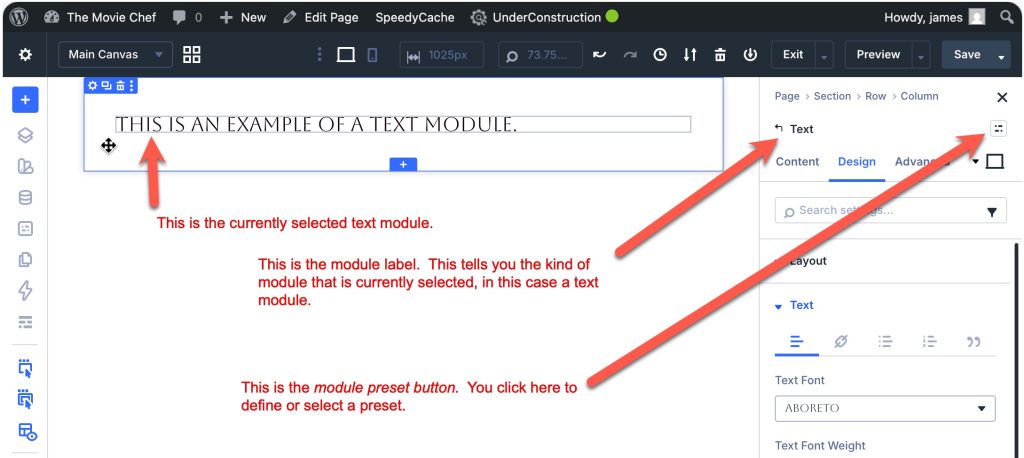
Now, click on the button across from the module's top-level label.
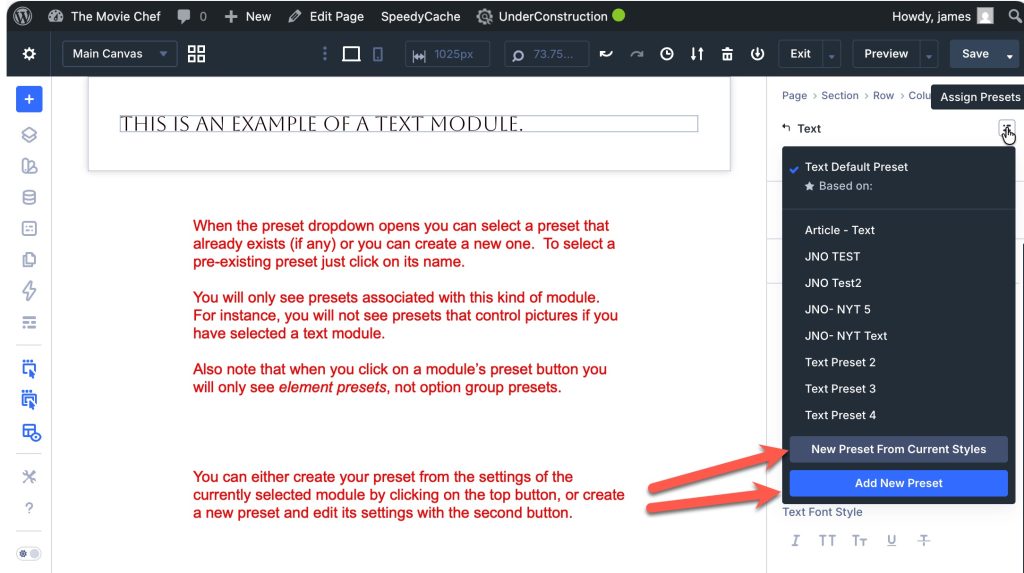
Click where it says "New preset from current style". You're halfway there!
Give your preset a descriptive name in the box labeled "Preset Name". This will be how you will identify the preset in the future.
I suggest that you name the presets you create with a prefix that identifies it as your's. For instance, I use my initials followed by a hyphen, "JNO-Text Style Red background". This keeps your styles together and easy to distinguish if you want to get rid of style created by others.
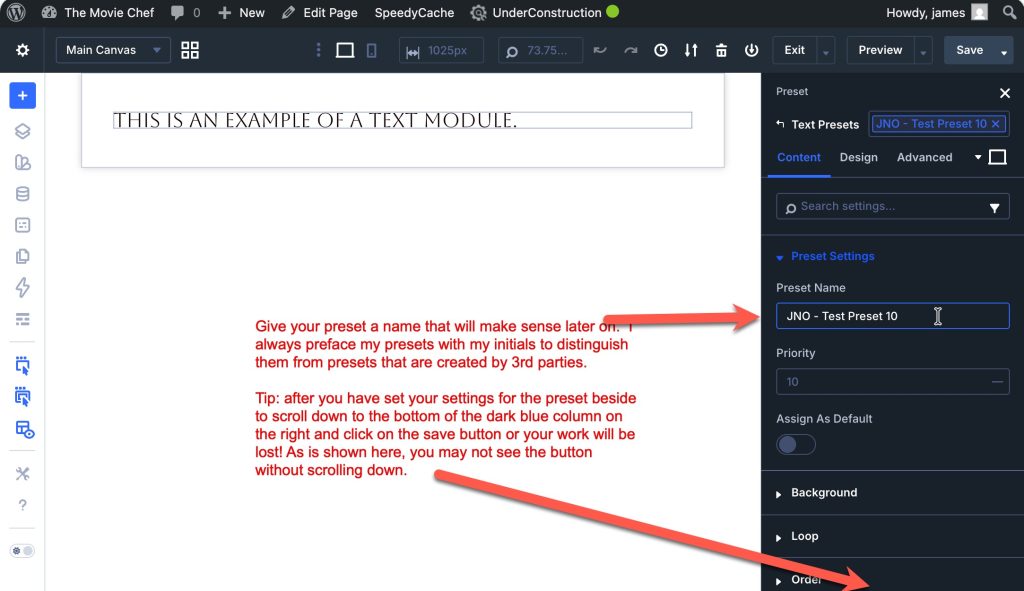
Scroll down to the bottom and click on the button marked save. You did it! You've created an element preset.
You will now notice that instead of the button across from the module label, in a box it now shows the name of the preset that is applied to the module.
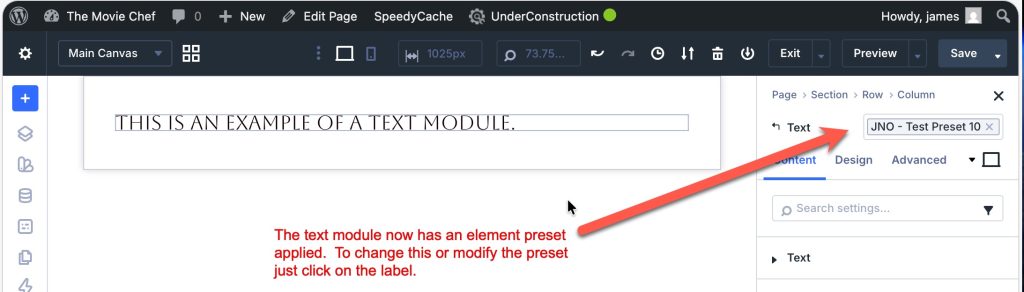
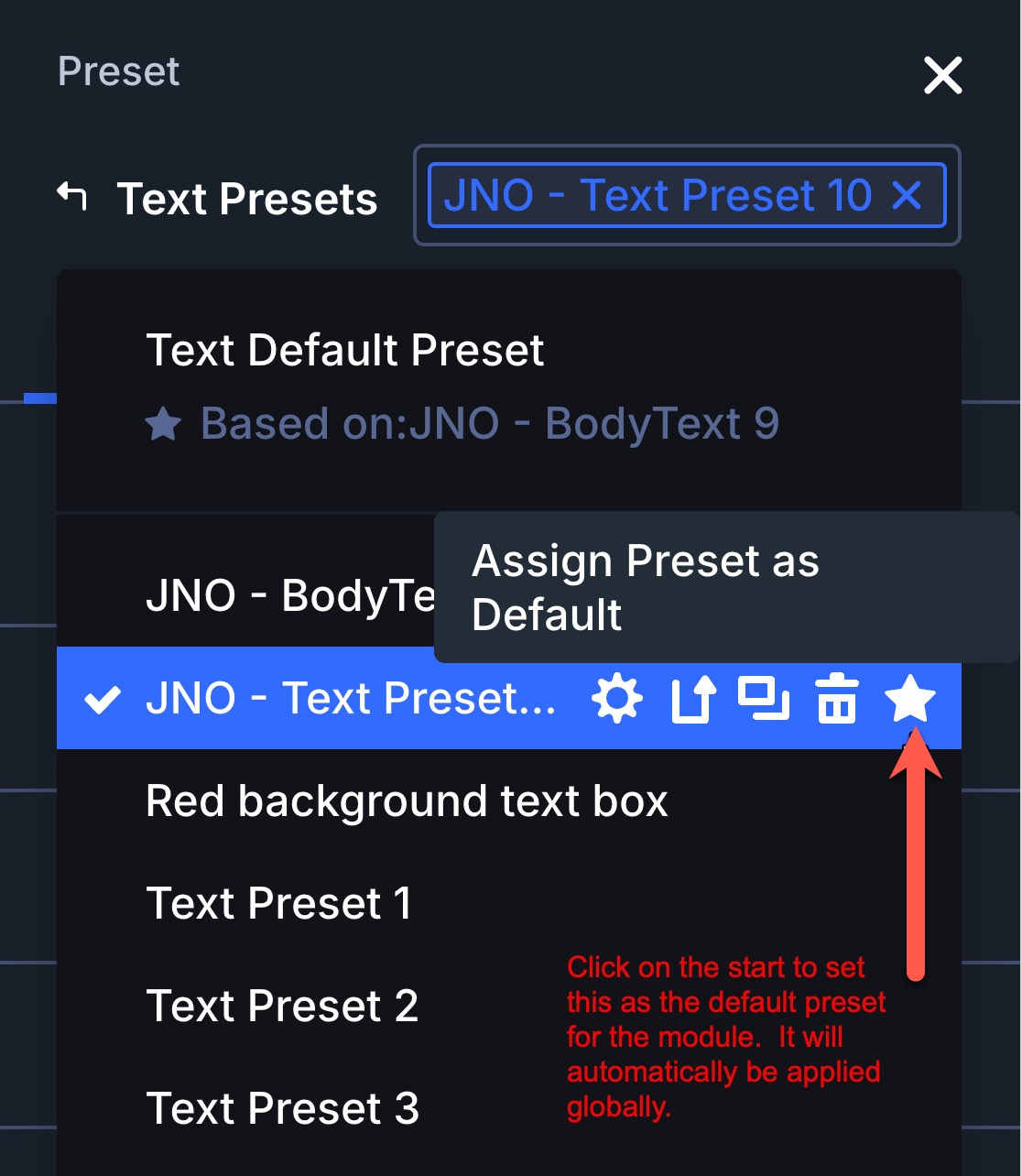
What if you want to make this the default style for a type of module so that it will automatically be applied when you create a new module? Click on the preset label, and then click on the star. This sets preset as the default. You also get a warning that this will change the default across the entire site. Click "yes", and your default is now set.
How do you apply an Element Preset?
As noted, the default (starred) setting will be applied automatically when you place a new module of the same type to a page. If you have created multiple presets, you can assign them to a module by clicking on the button across from the module's top level label.
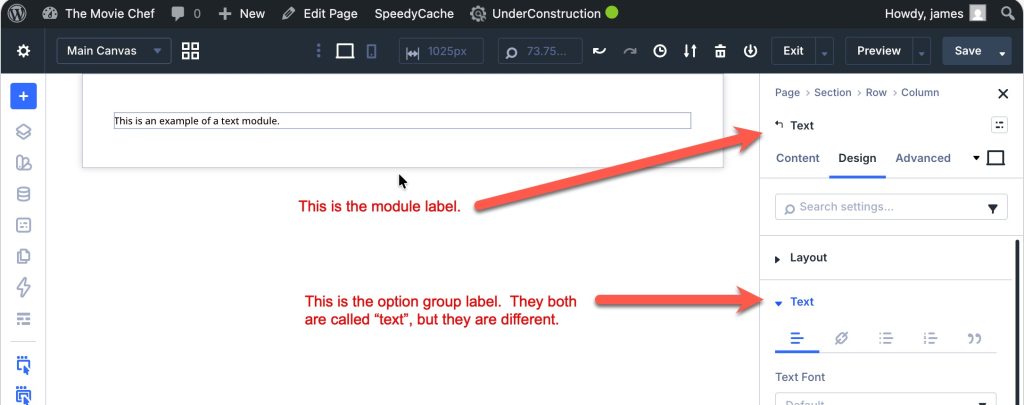
(As a sidenote, the top line of a of the settings panel for a text box will say "Text". However, underneath that top line further down the settings column, there will be another line that says "Text". They are different. The top one denotes the start of the module, whereas the next one is the text "object" within the module. When we want to assign or edit a element preset, remember we are modifying at the module level, so we want to click on the button on the module's top line, not the subordinate object line.)
How do you apply a Group Option Preset?
"Group Options" are subsets of the controls that make up a module. The controls in a given option group are generally related. As an example, the controls that adjust color are found in a "color" option group, and the font and size of the font are stored in another option group.
Let's say you want to make all buttons a given color. For that you would probably want to set a module preset because a button is a type of module.
But, if you wanted to make all text, whether in a button, text, or headline a certain size you would use a group option preset because you're affecting the group options that appear in all those modules.
Setting group object presets is similar to setting element presets, except that it is done by clicking on the button across from the option group's label, not the module's label.
One significant difference, though, is that the group option preset button doesn't automatically display (see below).
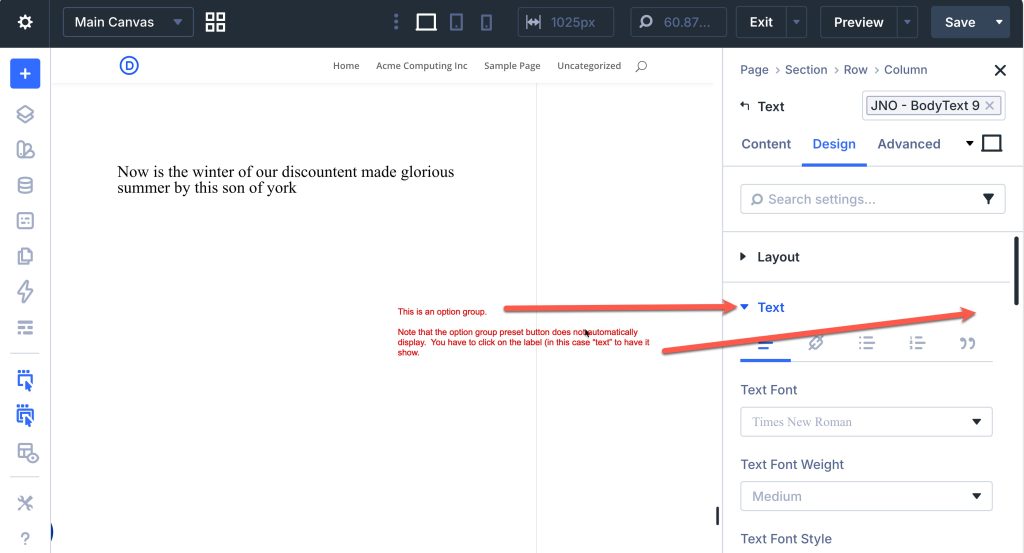
To make the group option preset button appear you need to click on the group option label, in this case "Text" (see below).
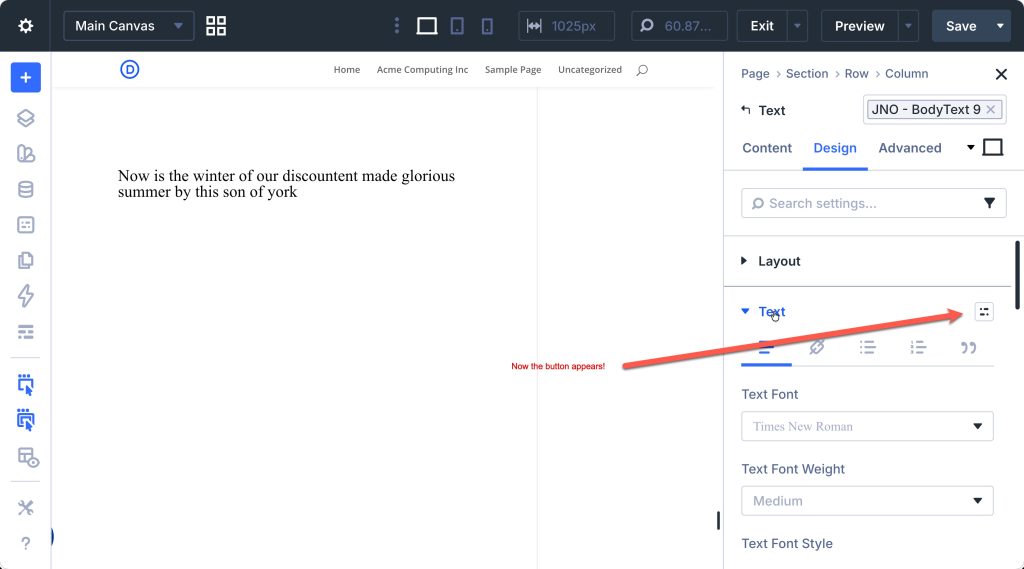
You will only see presets for the type of option group you have selected. You will not see module level presets when you click on an option group! This makes sense because you are changing things at the "object" level across all instances of that object regardless of the module in which it they are found.
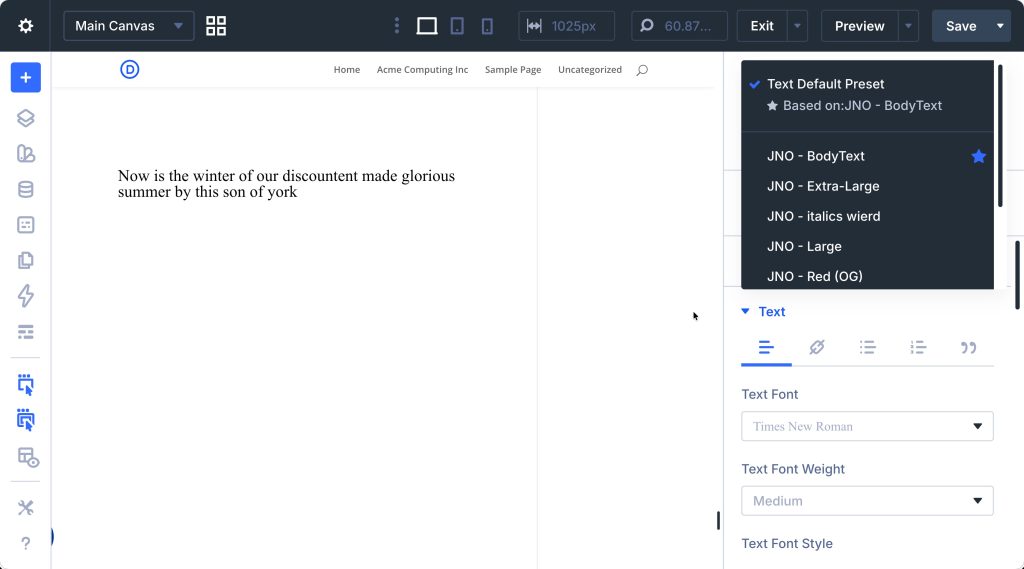
The JNO - Red preset I created has only one setting: text color is set to "red". If I apply it to the option group by clicking on it in the drop down menu, the text will change color to red. (If I set it to be the default by clicking on the star next to it, all the text on the entire site will turn red!)
Let's think globally
We've covered a lot in this article...both the pragmatic "how" and more philosophical "whys". You may have noticed that we've been moving from the most global to increasingly more precise targets for our stylin: from site-wide CSS files, to module level presets, and then down to object presets. We need to go one more level down before I let you go. We need to talk briefly about Global Variables. I will cover them more in depth in a later piece, but I would be remiss if I didn't mention them.
Think of a global variable as the most granular level preset. They are the "atoms" to Element and Group Presets molocules. It is probably a good idea to start designing at the global variable level and then work up from there to the presets, but in this article I've explained things in reverse, from the macro to the micro.
Continuing our example of working with text, let's see how global variables fit in: We will start by thinking about the basic sizes we want for text on our site. For example, "x-small", "small", "medium", "large", "extra-large", and "gigantic". Note, I'm not using the HTML structure names ("H6" through "H1" and "paragraph text"). I could, but I want you to understand that the name of the global variable is independent of the HTML name or any preset.
On the left side of the Divi screen you'll see a menu with icons. You want to click on the one tht looks like a cylander; if you hover over it you'll see a label "Variable manager". It is here that you can create and edit global variables that will hold values we will use to make our presets even more powerful.
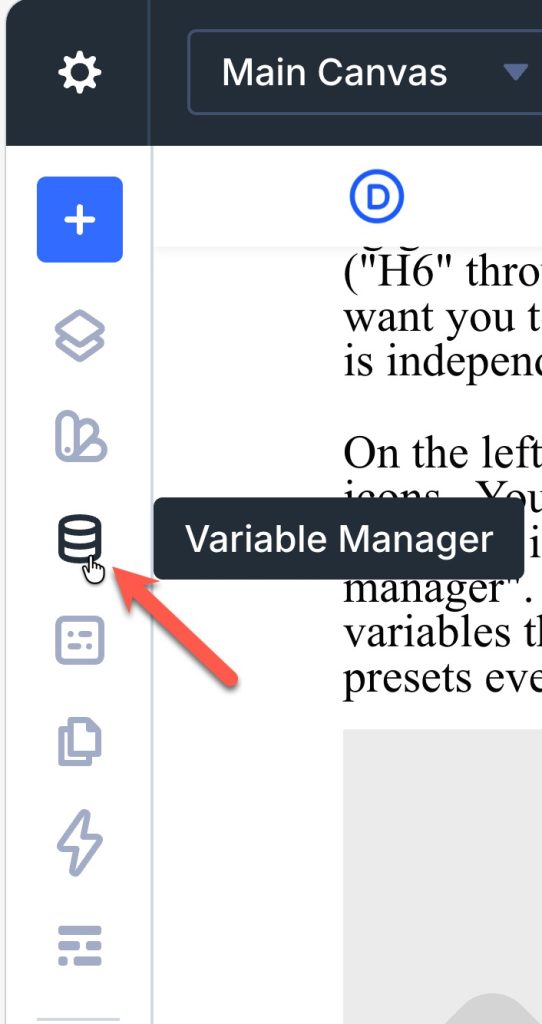
Let's get an overview of how global variables work. We are going to create a global variable for each of the text sizes we noted above. Then we will use those variables when we create our presets instead of hard coding the values into the presets. The net effect is that if we want to globally change the size of text we can just come back here and edit our global variable values; everything will then ripple the changes through the site with no further coding!
Here's how we create global values to affect text size
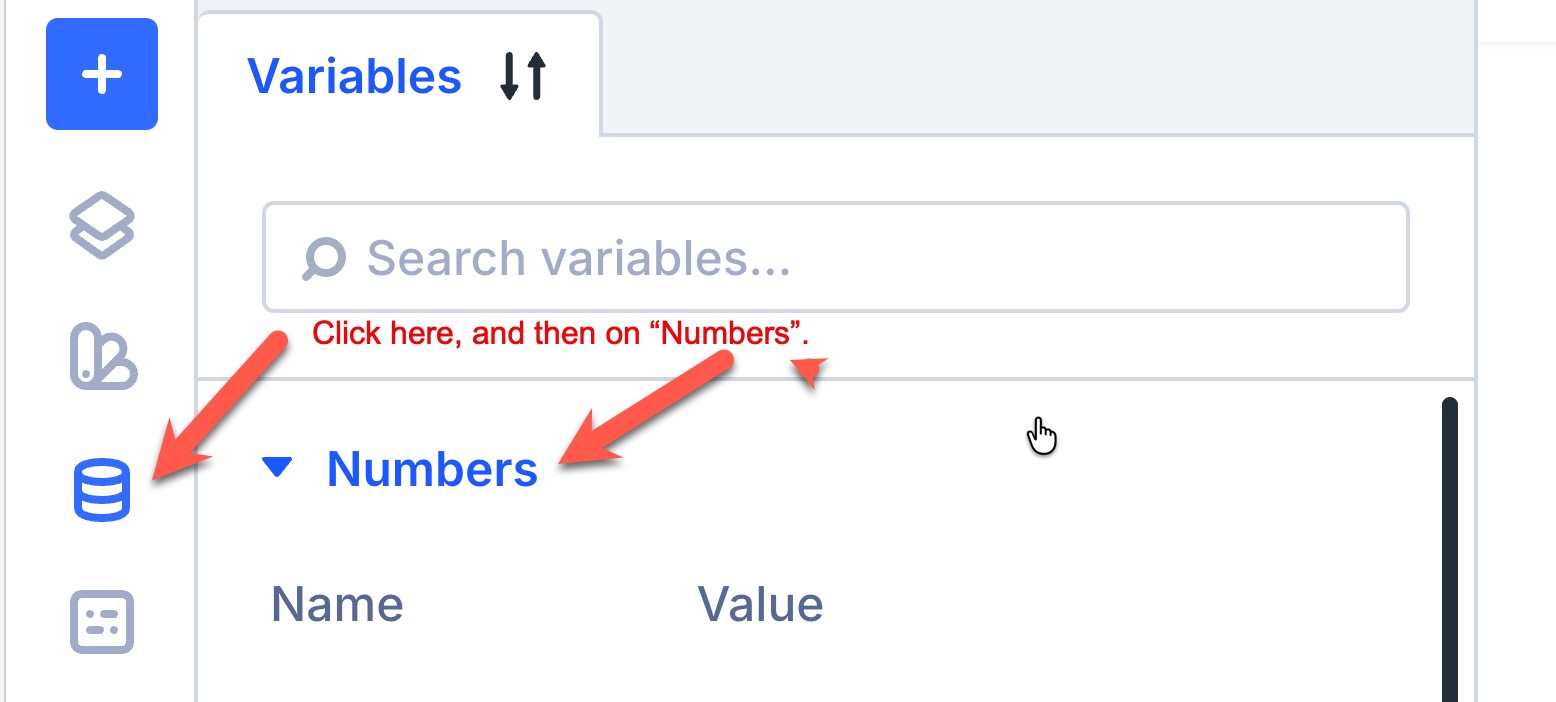
It may seem a little odd, but even though we are setting the size for text, the variables we want to create are under the "number" section of the global variable settings. This is because their values will be numerical sizes, not text. Click on "Numbers" under Variables, and then again on "Add Global Number".
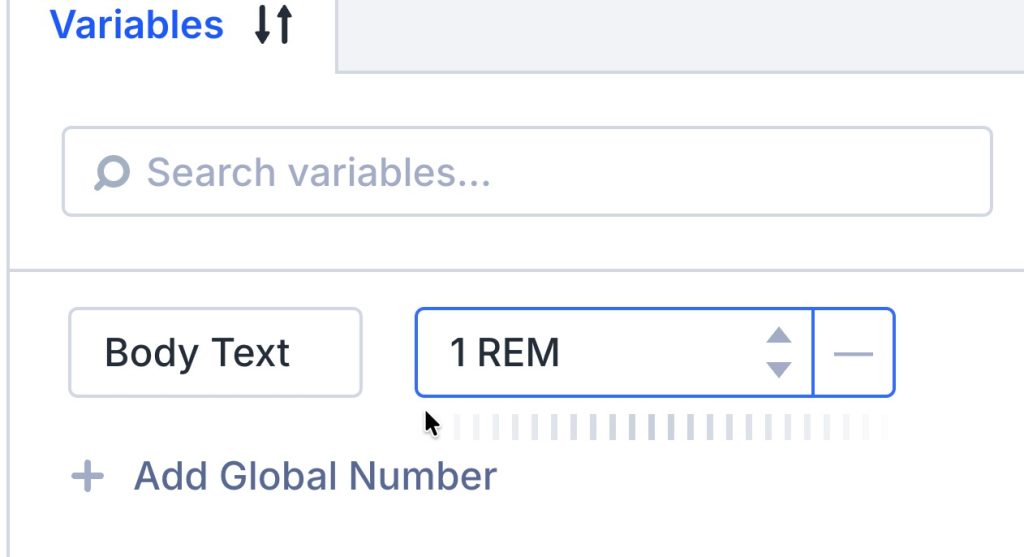
We will start by defining our extra-large font size. You can "name" the variable whatever you want, but following the convention I mentioned above, I call mine "JNO - BodyText". In the value field enter the size you want body text render. For this article I'll just use a fixed size. But, in a later article I will explore using fluid typography for a more responsive website.
In this example I'll enter 1 REM as the size of my "JNO - BodyText" font size. Then, I click "Save Variables" at the bottom of the screen. Notice, at this point, the variable isn't doing anything. It is not yet tied to anything on my site.
Be sure to scroll down and click on the save button!
Now comes the magic. I'll place a text module on the page and click on its gear sign. Then, I'll click on the "Design" tab, and scroll down until I see "Text". Click on the button to the right of "Text"; this opens up the object preset dropdown. Scroll down until you see "Create a new preset". Under "Text Size" click on the barrel-shaped icon and select "JNO - BodyText". This is the global variable we created before.
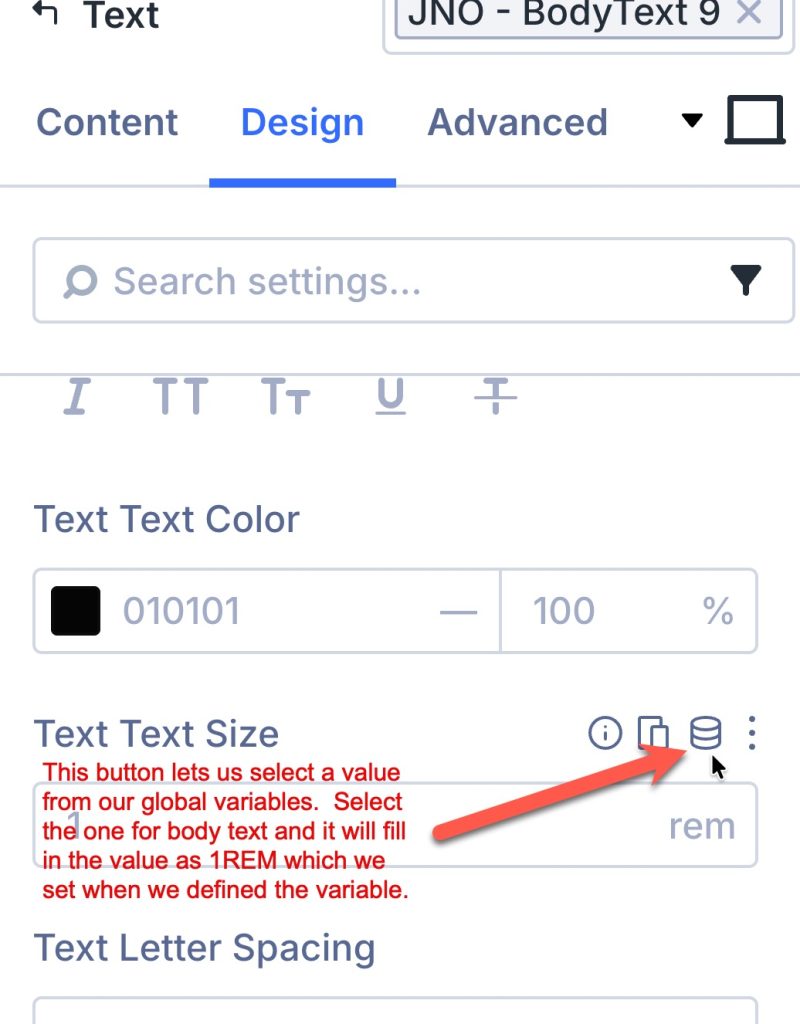
Be sure to scroll to the bottom and click on "Save Preset". If you want to make this the default size for all body text click on the star.
You can repeat this process for the various sizes. Then, whenever you want to assign a font size you can assign the preset and the rest will flow automatically from the size set in the global variable.
Limitations of Global Variables
If you have been writing web pages through the years, you're probably used to using the "<h1>...<h6>" tags to specify the relative size of your headings and subheadings. These are particularly handy when you're typing in a post. You're not looking to do a lot of styling, just give your post a bit of form and structure. You might think that you can use the the global variables in conjunction with the presets to style your article.
Wrong.
The global variable/presets only work at the object level. Typically, when writing a post you might have size codes like <h5> and <h6> interspersed between body text sections to denote sections of your work. To use the presets in theis situation you would have to make each subheading its own module, breaking up the flow of your article from one continuous section into many. This can seriously increase the possibility of introducing editing errors, particularly if you are working on a team. Typically, for instance, I have to send my manuscript into the editor, who then sends back notes, and even sometimes reorganzing the piece. If the article is in one section, editing is easy. But if you've broken each section into its own container it can be a real mess.
Fortunately there is a solution. Set the fundimental attributes for your blog post text in CSS. That way you have global control over them and can still use the <h> tags (or wysiwig sizes in the editor) and have global control. Use the global variables and presets to gain control over "whole sections" as you design your web pages, but maintain control over your post content with CSS.
This is why I recommended, above, that you not confuse the naming of your global variables and presets with the HTML names. They are different.
According to Divi, the way to globally style the traditional HTML tags is, believe it or not, the old-fashioned way with CSS! "To style all H1 headings sitewide in Divi 5 using global variables and presets, you should focus on applying your preset to the heading text fields within modules, rather than manually adding <h1> tags in the editor". While in most cases that works in creating multi-module, multi-section websites, when you want to knock out a post, using the convenience of tags (or the wysiwig editor) is more convenient and efficient. You don't want to break up the flow of the text to have to style a five-hundred word article. It makes editing a nightmare.
There is a solution, and it is decidedly "old-school", but very effective, and not too difficult. Use global CSS! Then the tags you use in the article will work just fine. For example, to style "<h1>" tags globally on your site, go to WordPress Dashboard → Divi → Theme Options → Custom CSS and add your styles. For example:
h1 {
font-size: clamp(16px, 4vw, 26px);
/* other styles from your preset */
}
p {
font-size: 1rem
/* etc, etc* /
}
Final thoughts and tips
The biggest, most important, and easy to screw up thing with regard to presets and global variables is forgetting to click the save at the bottom of whatever item you're working on. This is different than the "save page" option at the top of the screen. You can easily lose all the work you put in setting the parameters for a setting or global variable by forgetting to hit save before moving on.